Logistic
1. Page Objectives
The Dashboard provides an overview of the Finished Work Orders for the day, allowing users to track various incidents, work orders, and operations that have been completed. It allows users to filter and view specific details about the work orders, such as their status, the clients involved, and their associated costs.
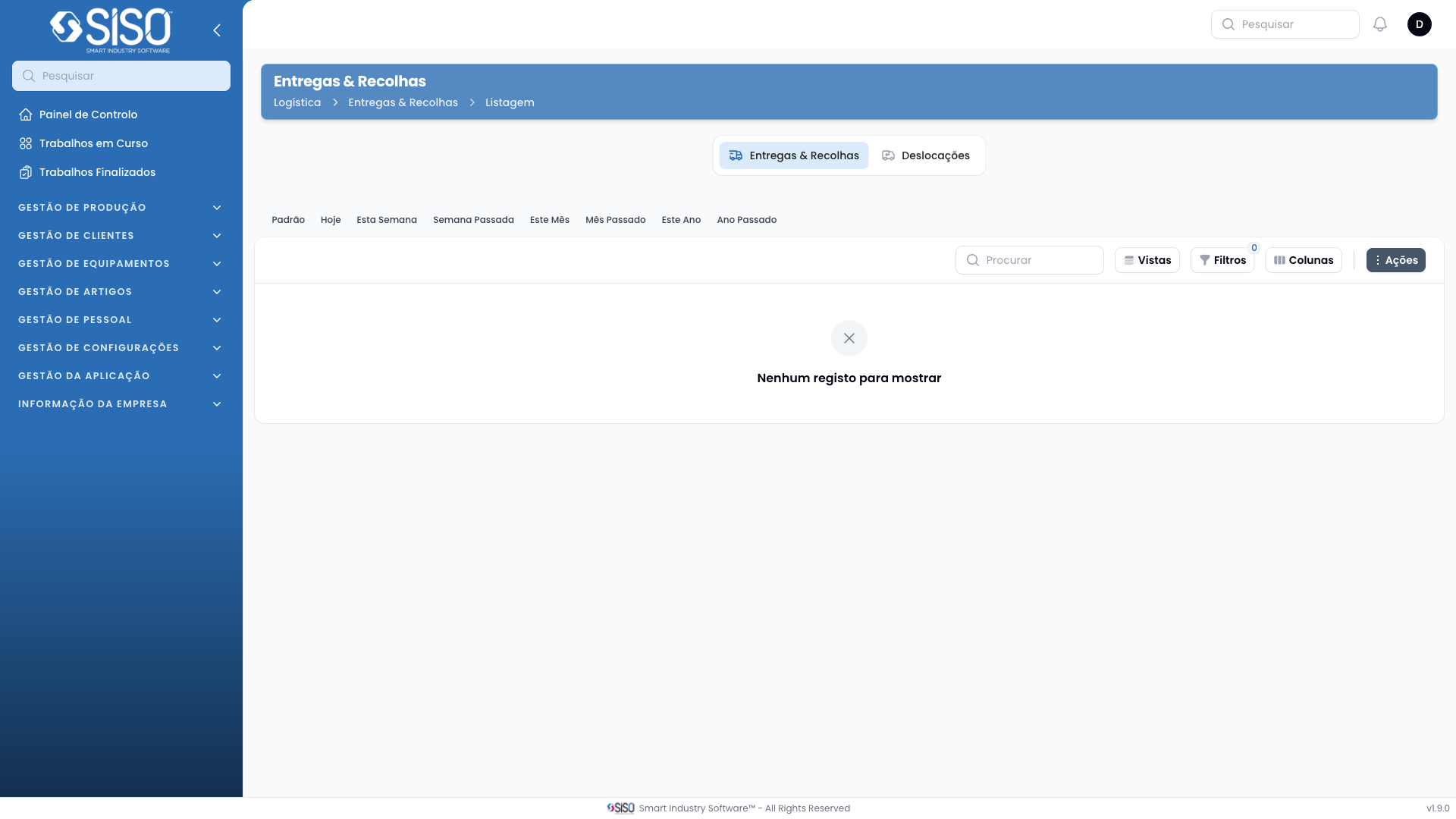
2. Table
The table contains a list of Finished Work Orders, displaying information such as the order ID, client, address, dates, and the status of the work orders. The table is dynamic and can be filtered or modified to display specific fields according to user preferences.
2.1. Table Actions
- Export All: This action allows the user to export all the records displayed in the table for further analysis or record-keeping.
2.2. Columns
| Field | Description |
|---|---|
| ID | Unique identifier for each finished work order. |
| Client | The name of the client for whom the work order was completed. |
| Delivery Address | The location where the work was delivered. |
| Weight | The weight of items associated with the work order. |
| Started At | The date and time the work order was initiated. |
| Finished At | The date and time the work order was completed. |
| Status | Indicates whether the work order has been finished, aborted, or in progress. |
| Time Spent | The total time spent on the work order. |
| Pause Time | The time during which the operation was paused. |
| Cost | The total cost associated with the work order. |
| Delivered | Indicates whether the work was delivered successfully. |
2.3. Filters
- Client: Filters work orders based on the client.
- Operation Type: Filters based on the type of operation (e.g., delivery, retrieval).
- Date Range: Filters work orders within a specific date range.
2.4. Record Actions
- View: Allows the user to view the details of the selected work order.
- Operations: Lists all the operations associated with the selected work order.