Work Orders
1. Page Objectives
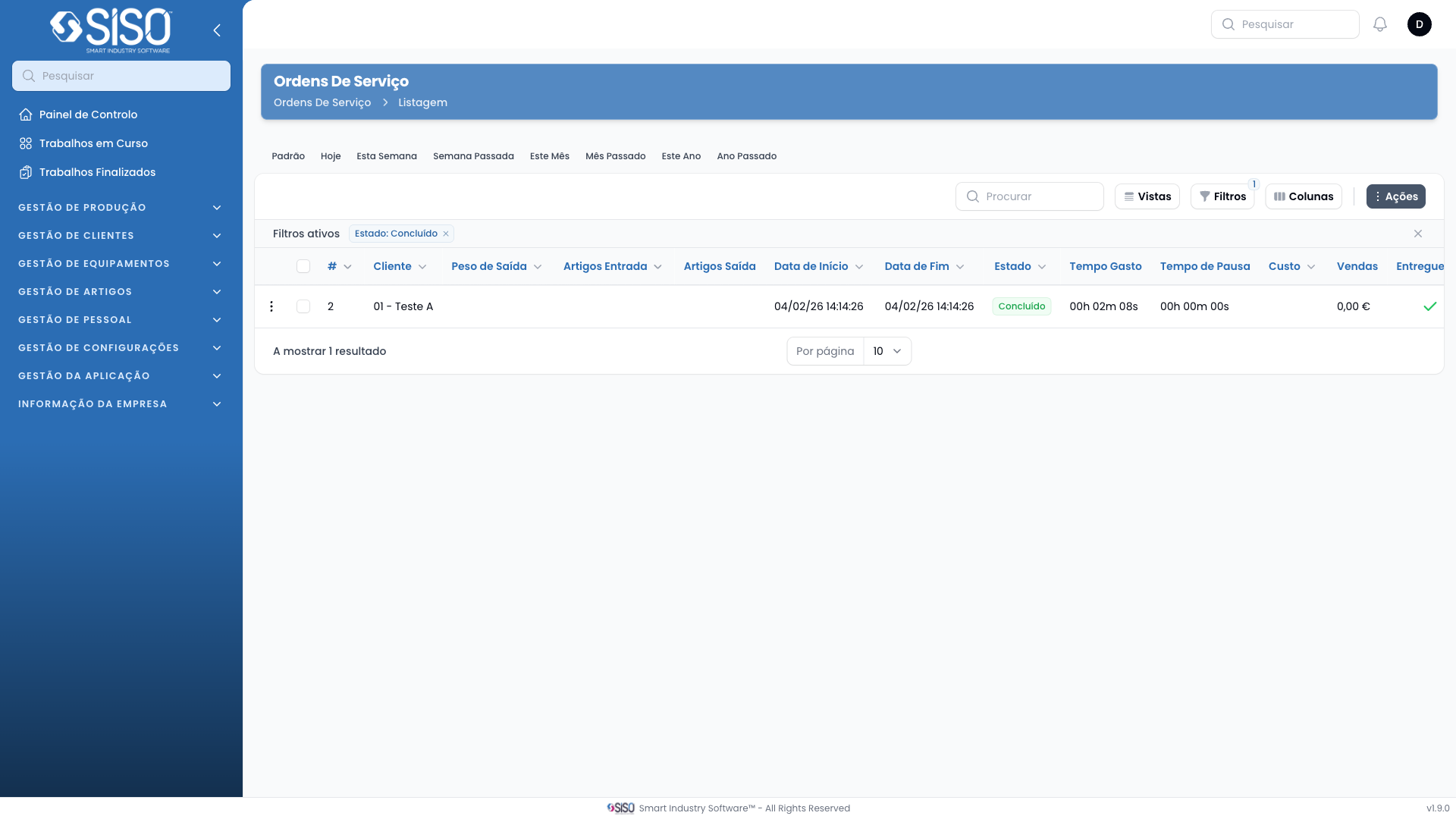
The "Work Orders" page lists all work orders, detailing the clients, delivery addresses, weights, number of articles, and the time each work order started and finished. It also tracks the status, time spent, pause time, cost, and whether it has been delivered. This page allows users to view, filter, and export data related to work orders.
2. Table
The table on the "Work Orders" page contains detailed information about each work order. It provides data on the client, delivery address, weight, start time, finish time, and the status of the order, along with other metrics like time spent, pause time, and costs.
2.1. Table Actions
- View: Allows you to view details about the selected work order.
- Operations: Opens the operations related to the selected work order.
- Export All: Exports all work order data currently displayed in the table.
2.2. Columns
| Field | Description |
|---|---|
| ID | The unique identifier for each work order. |
| Client | The client associated with the work order. |
| Delivery Address | The location where the order is delivered. |
| Weight | The weight of the delivery. |
| Nr. Articles | The number of articles in the order. |
| Started At | The date and time the work order started. |
| Finished At | The date and time the work order was completed. |
| Status | The current status of the work order (e.g., Finished). |
| Time Spent | The total time spent on the work order. |
| Pause Time | The total pause time during the work order. |
| Cost | The total cost associated with the work order. |
| Delivered | Indicates whether the order was delivered. |
2.3. Filters
- Date Filters: Allows you to filter work orders by date ranges such as today, this week, this month, etc.
- Client: Filters the work orders based on the client.
- Status: Filters the work orders based on their status (e.g., Finished, In Progress).
2.4. Record Actions
- View: Displays detailed information about the selected work order.
- Operations: Takes you to the operations page related to the work order.